Installation and recommendations
Installation and experiences
Installation of an SSD drive is no different than installing any other drive. Connect the SATA and power cable, and you are good to go. Once you power on that PC of yours, the first thing you'll notice; no more noise. That by itself is just downright weird.
My system boot drive was a WD Raptor and when that HD is crunching, you know the HDD is alive alright. That's just no longer a reality. You will look at the SSD wondering "is that thing even working?", while the Windows Vista logo has already appeared on your monitor. So no more purring and resonating or other weird noises. Completely silent, I love it.
The second factor you can rule out is heat. Modern day HDDs tend to get hot. When not cooled they can reach 40-50 Degrees C pretty easily. No worries though as the HDD can handle it, yet the SSD remains completely cool to lukewarm. Most SSD drives will get to roughly 28-30 Degrees C.
Then there's that first boot up on the SSD, weird... it's fast... really fast. That's where you'll get the first smile on your face. But let's start up some actual tests.
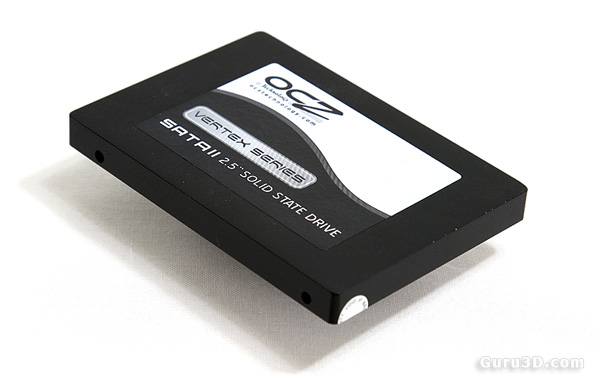
Some recommendations: drive wearing on a MLC based drive will always ghost in the back of your mind. Here are some recommendations and tips for a long lifespan and optimal performance. Basically, what is needed is to eliminate the HDD optimizations within Vista (that cause lots of small file writes like superfetch and prefetch), things like background HDD defragmentation (that causes lots of small file write drive activity). In short:
- Drive indexing disabled. (useless for SSD anyway, because access times are so low).
- Prefetch disabled.
- Superfetch disabled
- Defrag disabled.
So make sure you disable prefetchers. Also make sure you disable defragmentation on the SSD disk. You do not have a mechanical drive anymore so it is not needed, let alone you do not want defragmentation to wear out your drive.
For Superfetch/prefetchers and other services, at command prompt just type:
services
Use Vista's services to disable them. To disable defragment:
Vista Automatic Defrag:
1. Click Start
2. Click Control Panel
3. Select the Control Panel Home
4. Click System and Maintenance
5. Under the Administrative Tools section at the bottom, click Defragment your hard drive
6. You may need to grant permission to open the disk defragmenter
7. Click or unclick Run automatically (recommended) depending on if you want this feature enabled or disabled.
8. Click OK
